Items
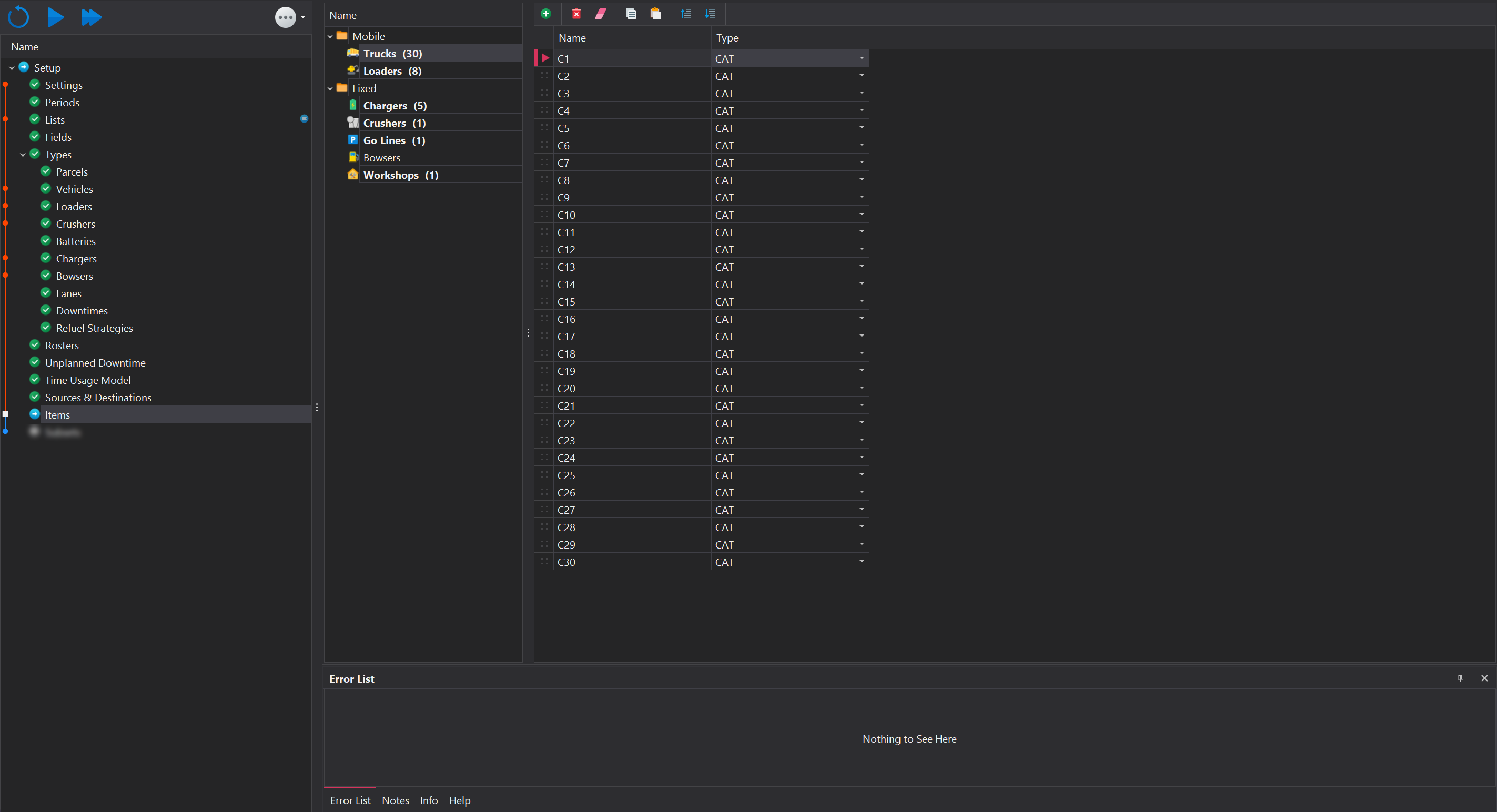
The Items step is where individual site assets for the simulation are defined. Each asset is mapped to a specific type, which was configured in a prior setup step. Items are organised into two main categories: Mobile and Fixed.
Mobile
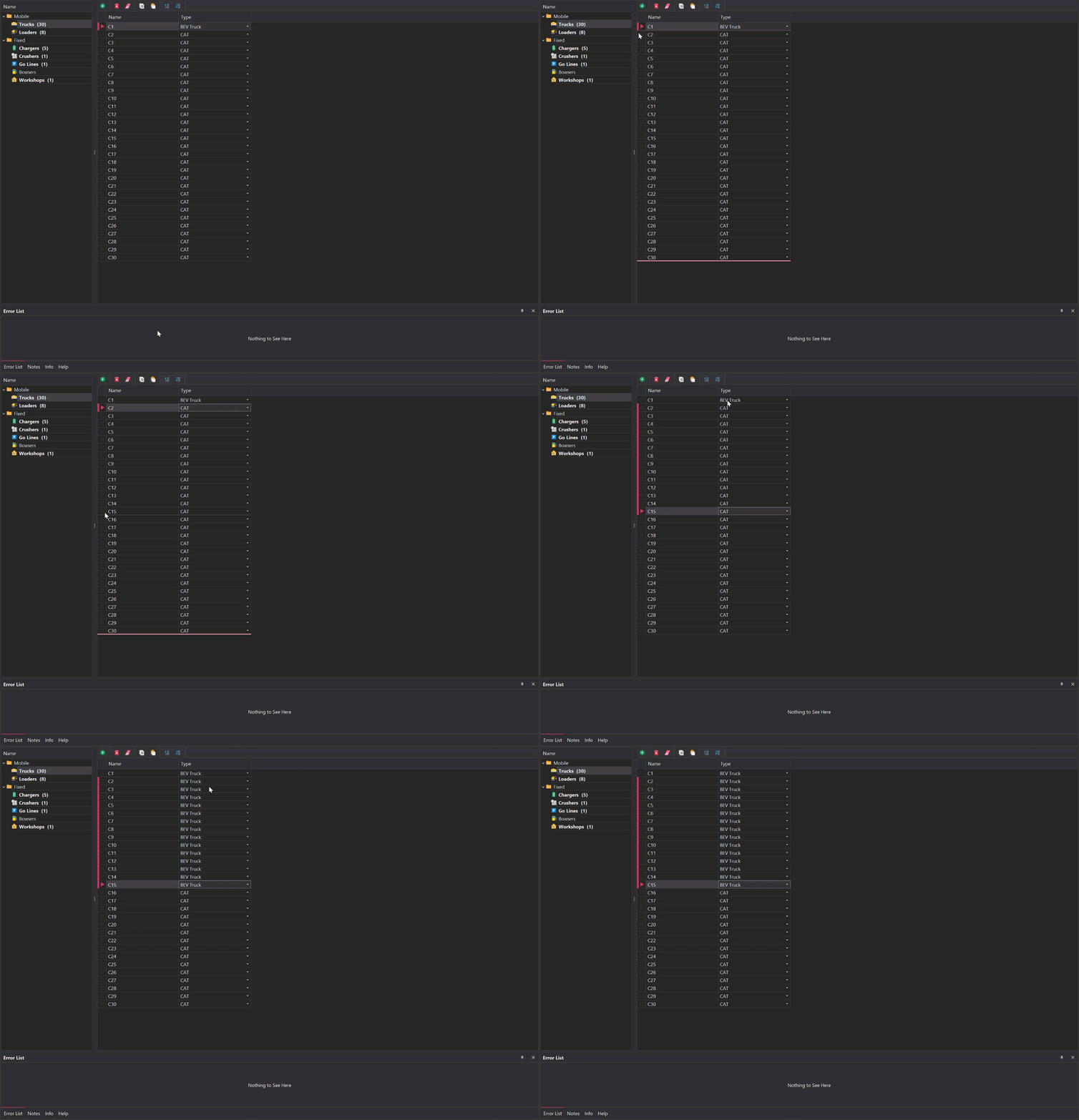
Mobile items are equipment that can move within the simulation. Currently, the only mobile items available are trucks, water trucks and load units. To manage mobile assets, use the toolbar located at the top to add or remove items. When adding a new item, the following two properties need to configured.
1️⃣ Name - The asset's name, e.g., EX10
2️⃣ Type - The model type of the asset, e.g., CAT 793. Options available are populated based on the Vehicles and Loaders steps.
Fixed
Fixed items are infrastructure elements that remain stationary throughout the simulation. These items include chargers, crushers, go lines, bowsers, and workshops. Each fixed item type has specific properties that must be configured. The actual physical location of the the items are set in the Designer tab.
| Item | Properties |
|---|---|
| Chargers | Name: The name of the charger. Type: The charger type, with options available based on the Chargers step. Grid: The electrical grid the charger draws power from. |
| Crushers | Name: The name of the crusher. Type: The crusher type, with options available based on the Crushers step. Crusher Hub: Only relevant in special cases; OK to leave as default value unless specified otherwise. |
| Go Lines | Name: The name of the go line. |
| Bowsers | Name: The name of the bowser. Type: The bowser type, with options available based on the Bowsers step. |
| Workshops | Name: The name of the workshop. |
Copy & Paste
To copy values to other entries, follow the steps below:
1️⃣ Select the relevant rows where you want to copy the value.
2️⃣ Right-click on the cell whose value you want to copy.
3️⃣ Click on 'Copy Cell Value to Selection.'